


Connecting a laptop to a phone hotspot is usually the easy part. Keeping track of what the laptop does with that connection takes a little more attention.
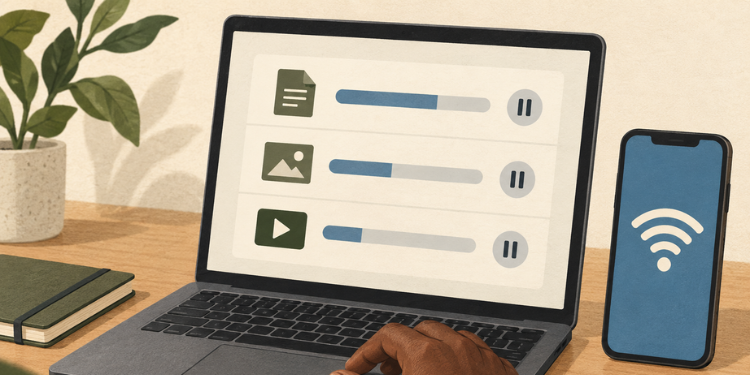
You may only want to send a document or attend an online class. Meanwhile, files could be syncing to cloud storage, an app could be downloading an update, or a browser tab could be playing video.
Those tasks use the same mobile data.
For anyone working or studying with a mobile data bundle, the useful question is what needs to happen now and what can wait. A few checks before starting make that decision easier.
Why a Laptop Can Use More Data Than You Expect
A laptop has its own applications and background tasks. Connecting it to your phone does not necessarily make all of them behave as they would on a phone using mobile data.
Suppose you open the laptop to submit an assignment after several days offline. The assignment itself may be small, but a synchronization app might also have a queue of files waiting to transfer. An online meeting adds another task competing for the same connection.
Check what else is running before attributing all the data use to the page in front of you. Cloud-storage apps, game launchers and media tabs are sensible places to check.
If you need to compare usage before and after a work session, your operator’s balance information can help, although reporting may not be immediate.
Avoid running repeated speed tests merely to confirm that you are connected. Those tests transfer data too.
Opening the service you actually need, followed by a small practical test, may answer the more important question.
What to Adjust Before Starting Work
On Windows, you can mark the hotspot’s Wi-Fi connection as metered. This tells the system to try to reduce data use on that connection. Some applications may behave differently and some updates will not download automatically, as Microsoft explains in its metered-connection guidance.
The metered setting does not enforce a hard data limit. Review the applications you have open as well, and temporarily pause large transfers that are unrelated to the work. Make a note to resume important backups and updates when an appropriate connection is available.
Preserve the traffic your work needs. If a class requires watching a demonstration, close an unrelated video rather than interrupting the lesson.
Before using tethering regularly, check the terms of your own mobile plan. Google’s Android hotspot guidance notes that operator restrictions or additional charges can apply. Do not assume every bundle treats laptop use in the same way.
What a Hotspot Password and a VPN Each Protect
Protect the hotspot with a strong password and share it only with people who need access. On an iPhone, the password is managed in Personal Hotspot settings; Apple’s connection guide explains the setup. Android settings vary by device, so use the instructions for your phone.
A VPN serves a different purpose. It encrypts the traffic routed through it between your device and the VPN server, and requires trust in the provider. If you want that additional connection privacy, you could consider a free VPN, such as X-VPN’s, after checking its terms and device support.
Do not treat a VPN as a way to save data. VPN traffic adds some overhead, and a VPN cannot guarantee a faster or more stable mobile connection. Protecting the hotspot password and controlling background downloads still need separate attention.
Where the VPN runs matters too: do not assume the phone’s VPN also protects a laptop using its hotspot. Verify whether your setup covers the laptop, or use the chosen VPN on the laptop itself. For a work-managed device, follow the employer’s required arrangement.
What to Test Before an Important Call or Upload
Prepare software before the deadline. If you have chosen X-VPN, obtain its VPN app for Windows from the official download page and test the setup before relying on it for work. Apply the same preparation to the meeting or learning app you need.
Then try a short version of the actual task. Make a brief test call in the meeting app, or upload a small, harmless document to the service you will use. A page loading successfully does not tell you whether a longer upload will complete.
Check the phone’s charge and keep a suitable charger available. Choose a position with a reliable signal where the phone can remain for the session. If a short test repeatedly fails, allow time to arrange another connection instead of spending the entire preparation period retrying.
When to Switch Connections or Save the Task for Later
When a deadline is close, protect the work already done. Save the document locally before changing networks.
For an online submission, look for the service’s confirmation afterward; a progress bar reaching the end is not always enough to establish that the submission was accepted.
For a call, agree on a fallback with the other person beforehand, such as switching to audio only if the video connection struggles.
Large, nonurgent transfers can wait for another connection. Turn off the hotspot when you finish, then resume any important updates or backups you paused once you are back on a suitable network.