


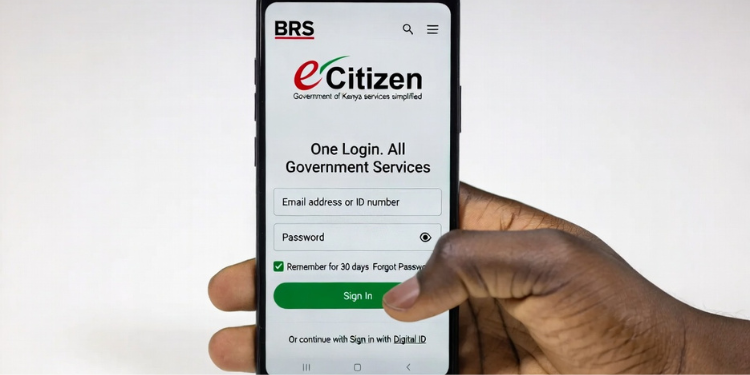
The Business Registration Service (BRS) has explained how company directors and shareholders can approve changes to their companies, such as appointing or removing a director or transferring shares, using a One‑Time Passcode (OTP).
According to BRS, anyone whose name appears in an appointment, resignation, or share transfer request must personally approve the change before it can be officially recorded. This means no changes can go through without your knowledge and consent.
Once you receive a notification that a change involving your name has been submitted, you are required to log in to brs.ecitizen.go.ke using your eCitizen account details. This is the first step in giving consent. If you do not have an eCitizen account, you will not be able to approve or reject the request.
BRS Step‑by‑Step Guide to Giving Consent Using OTP
After logging in, the system will ask where you want the OTP sent. You can choose to receive it through your registered email address or registered phone number. BRS has said the OTP will only be sent to the contact details already saved with the Registrar of Companies.
At this point, you must also make sure you are using your personal account, not a company or organisation account. The guide shows an account switcher page, where you select your personal profile. This is important because approval must come from the individual involved, not from a company account.
Also Read: How to Change Company Details on New BRS Platform
Once you are on your dashboard, select Companies Registry Services and click Proceed. This section handles all company records, including changes to directors and shareholding.
BRS will then send you an email or SMS with a link to the consent page. If you do not see the message immediately, check your spam or junk folder and confirm that your phone can receive SMS messages.
Clicking the link takes you to a page that shows the company name, the type of change being requested, and a summary of the transaction.
How to Approve or Decline the Request
On the consent page, you can search for the request using either the company name or the registration number. Once the details appear, you must clearly type “Approved” if you agree with the request, or “Declined” if you do not.
After you enter your response and submit the OTP, the system updates the page to confirm your decision. If you approve, the application will proceed automatically, and nothing further is required from you. If you decline, the request is stopped and marked as declined. The system only accepts the exact words “Approved” or “Declined,” so any other wording will not be accepted.
You can also add a short explanation, especially if you choose to decline. Once this step is complete, no further action is needed unless you are later asked to consent to another request.
Also Read: Steps for Applying for Bankruptcy Protection through BRS
BRS has said that the OTP will only be sent to the phone number and email address already registered with the Registrar of Companies. Users are advised to make sure their contact details are up to date, that their phones can receive SMS messages, and that they can access the email address linked to their company records. If you cannot access these details, the consent process may be delayed or completely blocked until the information is corrected.
How to Remove Company Directors on eCitizen
Changing company directors in Kenya also requires proper preparation of documents before starting the process on eCitizen.
For incoming directors, the required documents include a signed letter of consent, Form CR8 showing the residential address, and identification documents such as a National ID or passport, KRA PIN, and a passport‑size photo.
For outgoing directors, you need a resignation letter, Form CR9 to notify the cessation of office, an affidavit confirming the resignation, and minutes of the board meeting noting the director’s exit.
Having these documents ready helps prevent delays and increases the likelihood that the application will be processed smoothly.