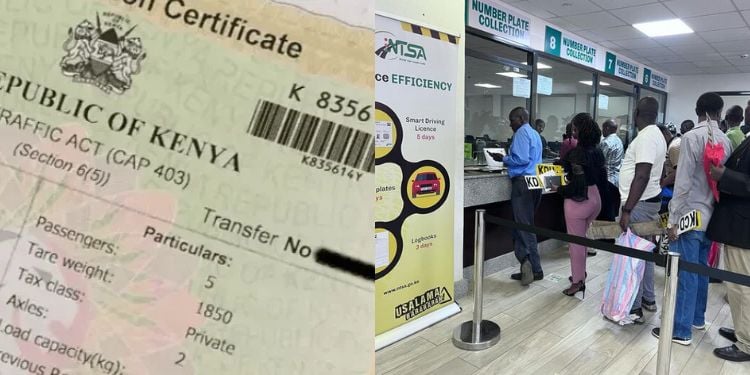


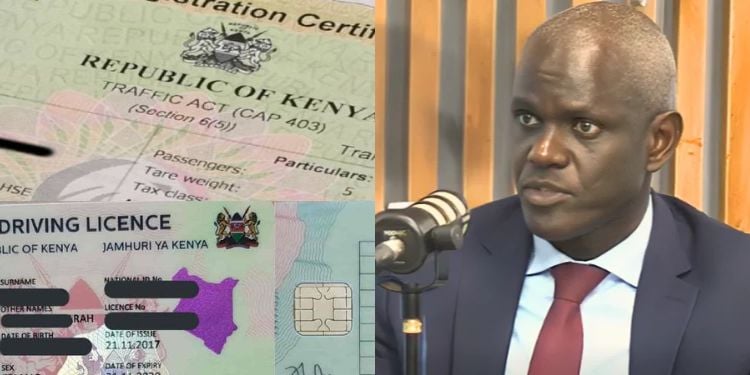
The National Transport and Safety Authority (NTSA) officially launched the eLogbook on June 10, 2026, phasing out paper logbooks in Kenya.
In a notice dated June 11, NTSA published a list of vehicle-related transactions that trigger the issuance of an electronic logbook through its digital platform.
According to the notice, eLogbooks are generated during:
- Motor vehicle registration
- Motor vehicle transfer of ownership
- Alternative transfer of ownership
- Asset Financing – In charge
- Asset Financing – Discharge
- Re-registration of motor vehicle
- De-registration of motor vehicle
- Change of particulars inspection
- Duplicate logbook
NTSA further advised motorists to verify the authenticity of their digital Logbooks before use and further detailed that verification can be done through the NTSA App or via [email protected].
“Verify the authenticity of your eLogbook using the NTSA App or [email protected],” the notice read partly.
Also Read: NTSA Explains How to Download Your eLogbook After Vehicle Transactions
How Each NTSA Service Works to Generate an eLogbook
| Service | What it does | How it works (Steps) |
| Motor Vehicle Registration | Registers a new or used vehicle for the first time with NTSA | • Apply via eCitizen (ntsa.go.ke) • Enter vehicle details (engine number, chassis number, make, model, colour) • Pay registration fees • NTSA approves application • eLogbook is generated with registered owner details |
| Motor Vehicle Transfer of Ownership | Transfers ownership from seller to buyer | • Seller initiates transfer on eCitizen with buyer details • Buyer accepts transfer and pays fee • SMS notifications sent to both parties • NTSA approves transfer • eLogbook updates to new owner • Buyer downloads updated eLogbook from eCitizen |
| Alternative Transfer of Ownership | Handles special transfers (inheritance, court orders, company transfers) | • Apply via eCitizen • Upload supporting documents (death certificate, court order, company resolution) • NTSA reviews application • Approval issued • Updated eLogbook generated under new ownership |
| Asset Financing – In Charge | Records vehicle under financing agreement | • Financier initiates “in charge” registration • Owner gives consent • Financing details recorded in system • NTSA processes application • eLogbook issued showing financier charge on vehicle |
| Asset Financing – Discharge | Removes financier’s claim after loan repayment | • Financier applies for discharge • Proof of full repayment submitted • NTSA verifies documents • Charge removed • Updated digital logbook issued showing full ownership |
| Re-registration of Motor Vehicle | Updates or changes vehicle registration category or region | • Apply via eCitizen • Submit reason (e.g. change use or relocation) • Provide required documents • NTSA reviews request • Approval granted • New eLogbook issued with updated details |
| De-registration of Motor Vehicle | Removes vehicle from NTSA register | • Submit application via eCitizen • Attach supporting documents (scrap/export certificate) • Pay required fees • NTSA approves request • Vehicle de-registered • eLogbook updated with de-registration status |
| Change of Particulars Inspection | Updates vehicle details after modifications | • Apply via eCitizen • Present vehicle for inspection at NTSA centre • Inspection report issued • Submit report online • NTSA approves changes • Digital logbook updated with new details |
| Duplicate Logbook | Issues replacement for lost, stolen or damaged logbook | • Apply via eCitizen • Pay duplicate fee • NTSA verifies original records • Application approved • eLogbook reissued instantly |
Verifying Authenticity
The authenticity of an eLogbook can also be verified through the NTSA portal’s document verification service.
Users are required to navigate to the Services section, select “Document Verification,” and click on “Verify Registration Certificate.”
Also Read: NTSA Details Full List of Minor Traffic Offenses and Fines for Motorists
The verification process involves scanning the QR code on the digital Logbook to generate a verification number.
Once the number is entered, users can click “Verify” to confirm the authenticity of the document and its details.
Alternatively, users can download the NTSA app from the Google Play Store and log in using their eCitizen credentials.
From the homepage, navigate to the Services section, select Document Verification, and click on “Verify Registration Certificate.” Scan the QR code on the eLogbook to generate the verification number before clicking “Verify” to confirm its authenticity.
Follow our WhatsApp Channel and X Account for real-time news updates.